custom-web-scraper
Web Element Inspector
Pulling every link, or every heading, off a web page normally means writing a program for that one page. This desktop tool makes it point-and-click: type an address, pick how to search, and it drives a real Chrome browser to find every match and outline it on the page. A live scrape against a real site is not demonstrated: the sandbox it was checked in had no internet.
Solo work by our founder, Salman Adnan.
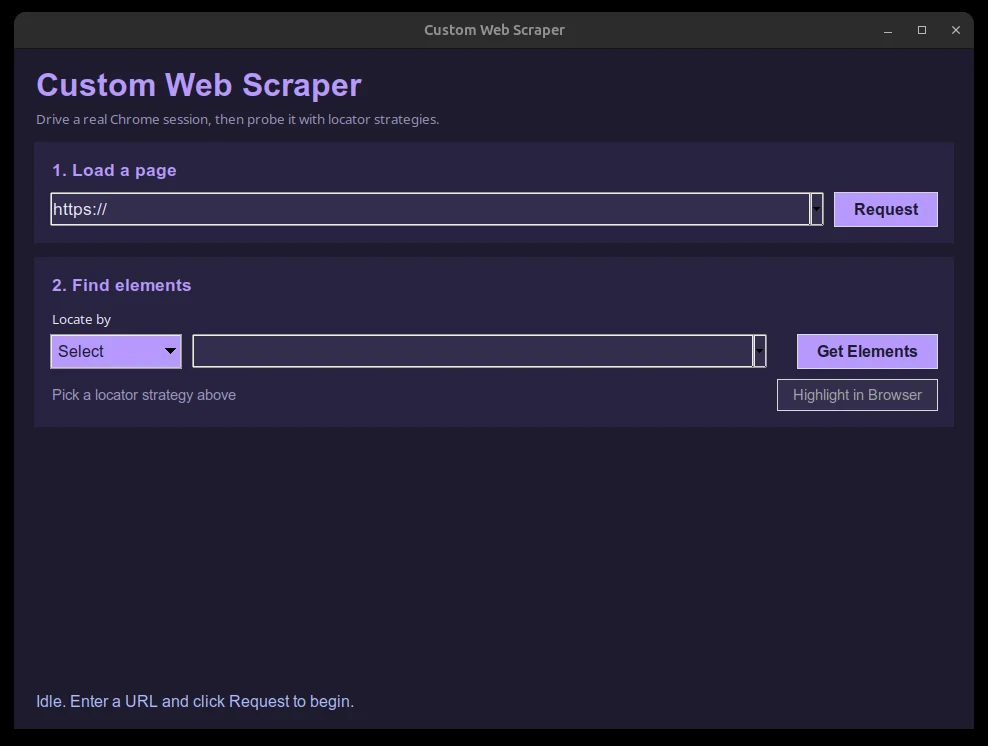
Overview
A desktop GUI for pulling elements off a live web page without writing a scraping script for each new site. Type a URL, pick one of seven Selenium locator strategies, and the tool drives a real Chrome browser to find every matching element, landing results in a sortable table with a "Highlight in Browser" button to confirm the match visually.
Key features
- Loads any URL into a real Chrome browser window from inside the GUI.
- Looks up elements by seven Selenium locator strategies: class name, ID, name, tag name, link text, partial link text, and XPath.
- Results open in a separate scrollable table (
ttk.Treeview) showing tag name, visible text, and a summary of key attributes per matched element. - A status bar reports every step ("Loading page...", "Found N elements", or a specific error), colored by severity.
- Session history: the URL and locator fields remember up to 10 recent entries each.
- "Highlight in Browser" outlines every matched element in the live Chrome window and scrolls it into view.
Verification
This is a GUI that drives a real browser, so a full end-to-end run needs a display and a live target site. What was actually checked: main.py compiles cleanly; the pure result-formatting functions (summarize_element, build_result_rows) pass all 7 cases in a standalone unit test suite against fake duck-typed elements, covering truncation, whitespace collapsing, missing attributes, and a simulated stale-element exception; and the full Tkinter window, including the history comboboxes and the status bar, constructs and runs against a fake driver on a live X display. A live Chrome session against a real site was not exercised here, since this sandbox has no outbound network access for Selenium Manager to fetch a chromedriver; the Selenium calls used are standard 4.x API and match documented usage.